Product update
Save Rows in Your Email Templates
December 5, 2021 All product updates →
Save a row in your template and then re-add it to any other template with a simple drag and drop!
Perfect for creating headers and footers or personal email signatures 🤩
Here’s how to save and easily reuse your customizations:
Step 1: Select a row in your template you want to save and click the save icon.

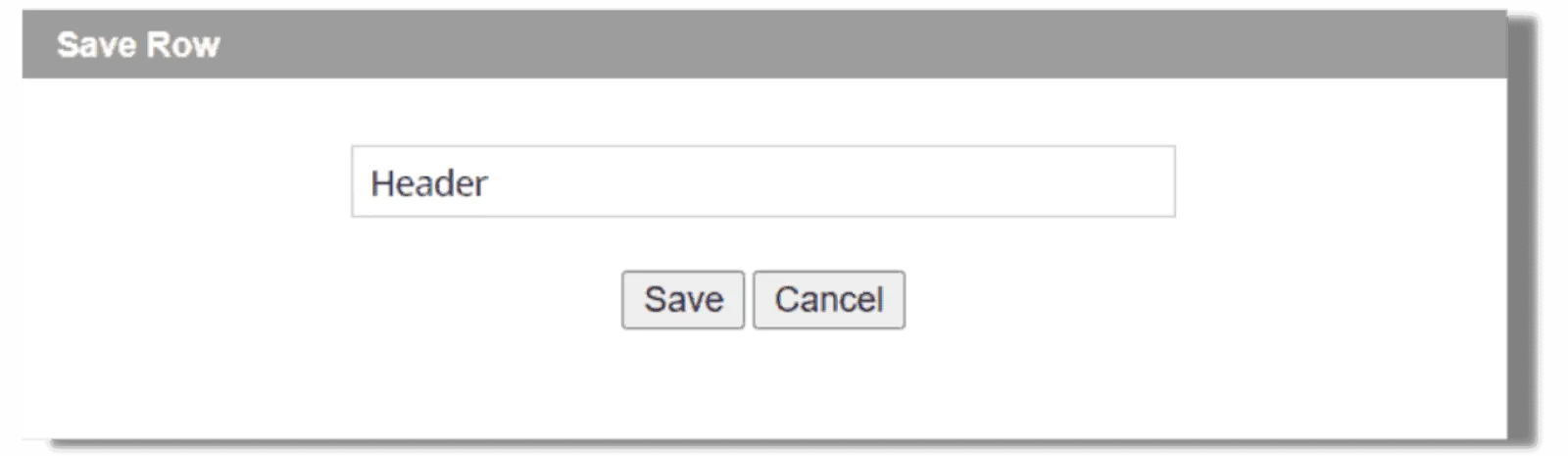
Step 2: Give your row a description (this is optional) and save.
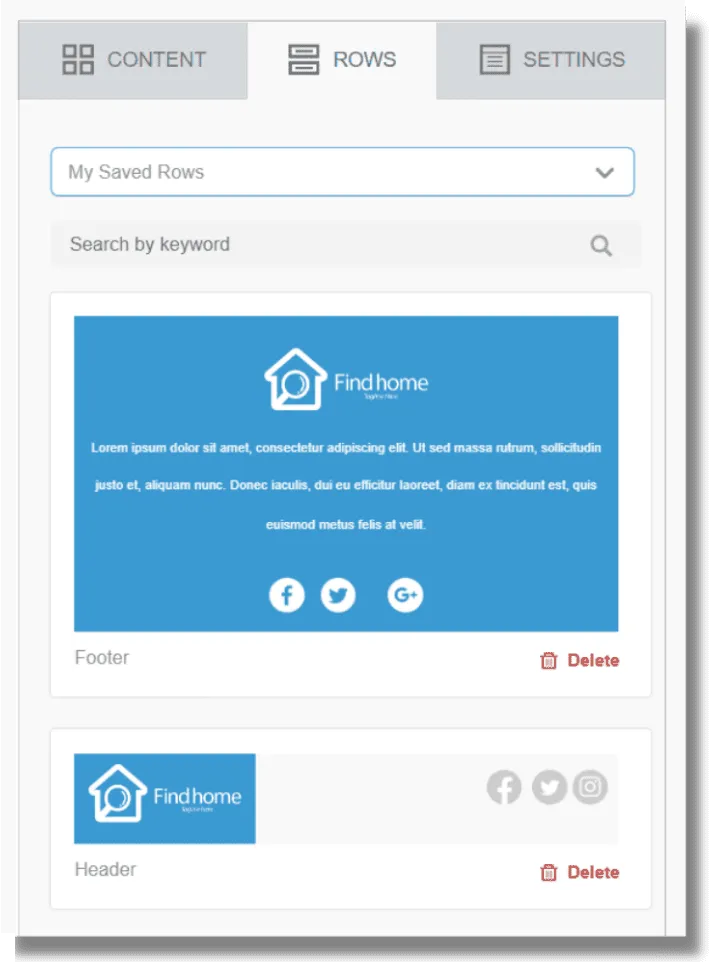
Step 3: To use a Saved Row, click on the Rows tab and select My Saved Rows.
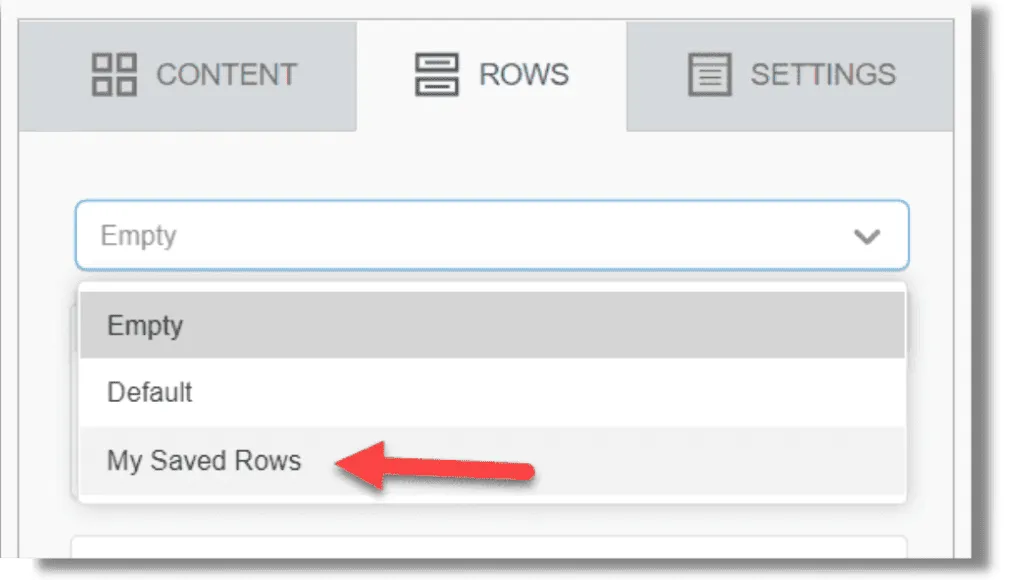
Step 4: Select the row you want to use and then just drag and drop to the part of the template you want to insert the saved row.